# How to Build and Deploy a Progressive Web App with PWAFire, GitHub Pages, and Firebase
Recently I discovered a new trend, a powerful web technology, one that every Web Developer should know, yeah I said every!
I first heard about PWA’s a few months back, and at first, it was weird trying to
understand the concept and then trying to learn it. I stumbled on a link that
led me to [PWAFire](https://github.com/mayeedwin/pwafire) an Open Sourced framework that helps you to *Build Scalable Progressive Web Apps/First Experiences.*
I started out by reading what PWA really means and why I should learn it. After understanding the entire concept, I decided to dive in.
> As a Developer, one skill you should possess is “Learning”. What you knew
> yesterday might be obsolete today. It happens on the web from time to time that
powerful technologies come to exist, if you are still behind, you’d miss out on
this evolution.
So you should have heard of PWA or Progressive Web Apps and you probably might
be wondering what this really means?
> Basically a Progressive Web App is a mobile website that can perform super-fast
> and behave just like a mobile app.
A Progressive Web App (PWA) is a web app that uses modern web capabilities to
deliver an app-like experience to users.
Now let's break this down!
Let's break the word *Progressive Web App;*
**Progressive**: *happening or developing gradually or in stages.*
**Web**: A *common name for the World Wide Web, a subset of the Internet
consisting of the pages that can be accessed by a Web browser.*
**App:** An application, especially as downloaded by a user to a mobile device
> Let's merge all this definition; *a subset of the Internet consisting of the
> pages that can be accessed by a Web browser, happening or developing gradually
or in stages and can be *downloaded by a user to a mobile device.
To wrap up; *A progressive Web App is a modern web application built with a
number of specific technologies and standard patterns which allow them to take
advantage of both web and native app features.*
PWA helps us to build Cross-platform web apps (Works on the web, Android, iOS
and Desktop)
Progressive Web Apps are installable and live on a user’s **home screen**,
without the need for an app store. They offer an **immersive full screen**
experience with help from a web app manifest file and can even re-engage users
with web **push notifications**.
### **What does a Progressive Web App Looks Like?**
When you visit a website with PWA, It pops up with a notification telling you to
add the website to your home screen. This is just like downloading an app from
the App Store or Play Store.
I would be showing you shots from
[Netty-Finder](http://netty-finder.herokuapp.com/) a little project I built, you
can contribute [here](https://github.com/BolajiAyodeji/netty-finder).
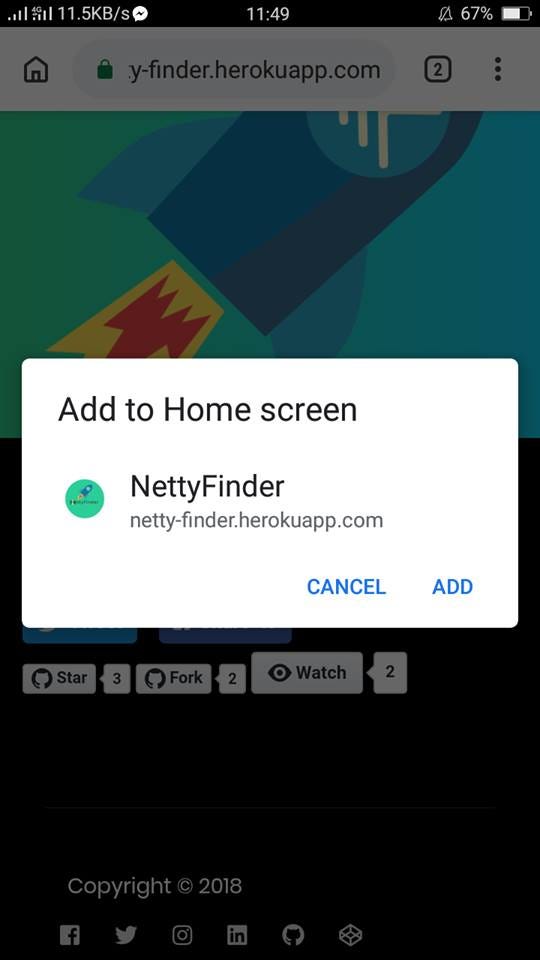
Once you’ve clicked **ADD,** the website is then installed on your device and yes it acts like a mobile app.
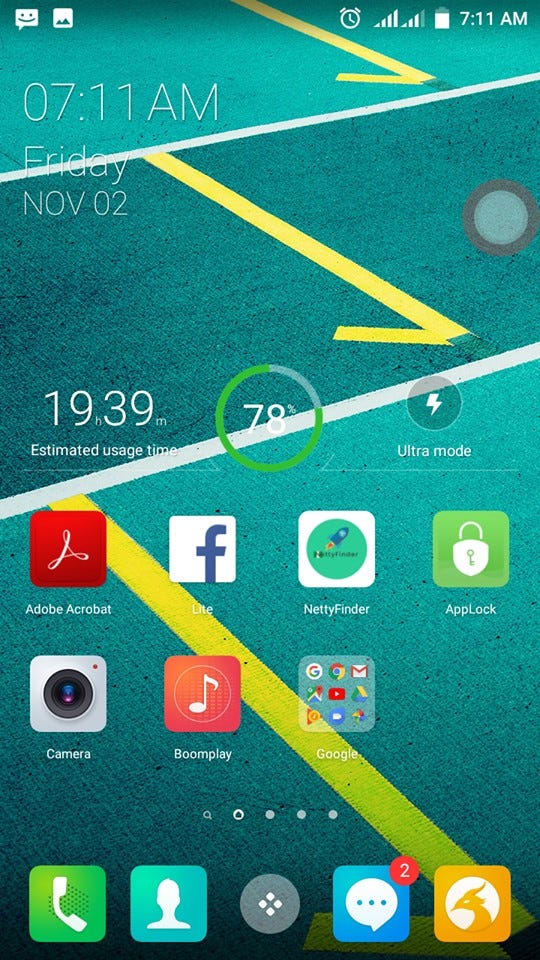
You can uninstall it and share it; basically you use it as a normal Mobile
App. Cool right?
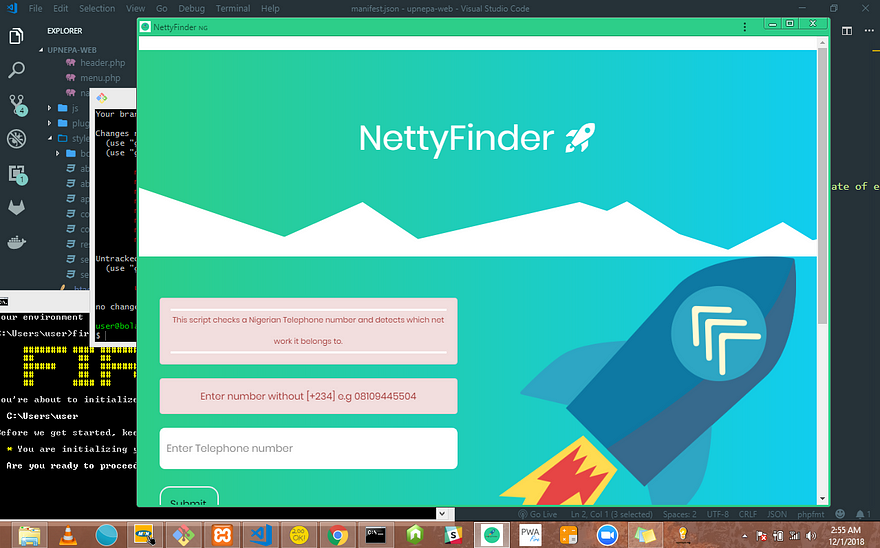
PWA’s can also be installed on Android, iOS and Desktop.
Here’s how it looks on Desktop
### Why build a Progressive Web App?
So why should you build a PWA?
Building a high-quality Progressive Web App has incredible benefits, making it
easy to delight your users, grow engagement and increase traffic.
*****
* **they’re installable** — if a user visits your website for the second, third,
or fourth time, they get the option of adding it to their home screen. After
that, it’s still linkable and therefore shareable via URL.
* **they’re indexable** — your app is visible in the browsers and so it’s
searchable for users.
* **they work offline** — once you download it to your device, you can cache
contents from the app without an Internet connection. Your users will never see
the running downasaur :)
* t**hey can send push notifications **— once a new article/product/piece of news
shows up on your website, your users will be notified just like every mobile app
out there.
* **they cut down page load times** — as proved by
[housing.com](https://developers.google.com/web/showcase/2016/pdfs/housing.pdf),
PWAs can significantly reduce page load times and thus improve overall UX.
* **they’re progressive** — they will work for any user on any device, even with a
poor Internet connection.
The benefits of Progressive Web Apps are enormous — you can check more on
[Google Developers
Docs](https://developers.google.com/web/progressive-web-apps/).
### The three basic criteria for a PWA
The three baseline criteria a website must fulfil in order to qualify as a
Progressive Web App are:
> - You need to be running under HTTPS.
> - You need a Web App Manifest.
> - You need a Service Worker.
Now, let's move to the Codelab section :)
### Codelab Flow
* What we shall do in this codelab
* Download Demo Project
* Starter guide
* Setup Service Worker
* Setup Web Manifest
* Configure Service Worker
* Configure Web Manifest
* Firebase Hosting
* GitHub Pages Hosting
* What's next
### What to do
We are going to convert a basic static site into a Progressive Web App.
Make sure to follow all the steps as documented later below.
[Download](https://github.com/BolajiAyodeji/code-lab-demo/archive/master.zip)
the project template. **Unzip** the downloaded file to your preferred location
after **download.**
If you are using **GitHub Desktop,** simply
[Fork](https://github.com/BolajiAyodeji/code-lab-demo/fork) and
[clone](https://github.com/BolajiAyodeji/code-lab-demo/fork) it. If you’re using
Git, `git clone https://github.com/BolajiAyodeji/code-lab-demo.git`
### Download Demo Project
This project is a basic app built with HTML, CSS, BOOTSTRAP AND JAVASCRIPT.
The App checks your Date of Birth and detects the Day of the Week you were born. Pretty cool right? 😀
We are going to convert this web app into a Progressive Web App and test it
using the [PWAFire Checklist](https://pwafire.org/developer/docs/checklist/)
[DOWNLOAD THE DEMO WEB APP](https://github.com/BolajiAyodeji/code-lab-demo/fork)
### Starter Guide
In your root folder, create two empty files; `service-worker.js` and
`manifest.json` and save. Once done; let's proceed down here;
### Setup Service Worker
This is the first step to making our web app work offline. Copy and paste this
code to the **index file** just before the end of the body tag or in the head
tag.
**N/B : YOU NEED HTTPS** :
We are going to use [Firebase
Hosting](https://firebase.google.com/docs/hosting/deploying#section-hosting-setup)
and [GitHub Pages](https://pages.github.com/) later which shall have **HTTPS**
already provisioned for our project.
First, we need to check if the browser supports service workers, and if it does,
register the service worker.
```
```
### Setup Web Manifest
We are going to add a link tag to all the pages that encompass our web app
inside the head tag. For our case, we only have one page, the **index.html**.
Add the following code to it.
```
```
### Configure Service Worker // service-worker.js
A service worker is a script that your browser runs in the background, separate
from a web page, opening the door to features that don’t need a web page or user
interaction.
**NOTE** : The important thing to understand about the **Service Worker** is
that you are in control of the network. You get to decide what is cached, how it
is cached and how it should be returned to the user.
Follow the steps in the code below, configure to your desired taste :)
```
/ PWA Fire Bundle
// after a service worker is installed and the user navigates to a different page or
// refreshes, the service worker will begin to receive fetch events
self.addEventListener('fetch', function(event) {
event.respondWith(caches.open('cache').then(function(cache) {
return cache.match(event.request).then(function(response) {
console.log("cache request: " + event.request.url);
var fetchPromise = fetch(event.request).then(function(networkResponse) {
// if we got a response from the cache, update the cache
console.log("fetch completed: " + event.request.url, networkResponse);
if (networkResponse) {
console.debug("updated cached page: " + event.request.url, networkResponse);
cache.put(event.request, networkResponse.clone());}
return networkResponse;
}, function (event) {
// rejected promise - just ignore it, we're offline!
console.log("Error in fetch()", event);
event.waitUntil(
caches.open('cache').then(function(cache) {
// our cache is named *cache* in the caches.open() above
return cache.addAll
([
//cache.addAll(), takes a list of URLs, then fetches them from the server
// and adds the response to the cache.
// add your entire site to the cache- as in the code below; for offline access
// If you have some build process for your site, perhaps that could
// generate the list of possible URLs that a user might load.
'/', // do not remove this
'/index.html', //default
'/index.html?homescreen=1', //default
'/?homescreen=1', //default
'/assets/css/main.css',// configure as by your site ; just an example
'/images/*',// choose images to keep offline; just an example
// Do not replace/delete/edit the manifest.js paths below
//These are links to the extenal social media buttons that should be cached;
// we have used twitter's as an example
'https://platform.twitter.com/widgets.js',
]);
})
);
});
// respond from the cache, or the network
return response || fetchPromise;
});
}));
});
self.addEventListener('install', function(event) {
// The promise that skipWaiting() returns can be safely ignored.
self.skipWaiting();
console.log("Latest version installed!");
});
```
### Configure Web Manifest // manifest.json
Configuring the `manifest.json` file helps you to specify how you want your web
app to look like when launched on the device.
You can also use the [WEB MANIFEST
GENERATOR](https://app-manifest.firebaseapp.com/) to automatically generate your
`manifest.json` file
```
{
"background_color": "#fff",
"display": "standalone",
"orientation":"portrait",
"theme_color": "#fff",
"short_name": "DOB Finder",
"name": "Date of Birth Finder",
"description": "description or purpose of your progressive web app",
"lang": "en-US",
"icons": [
{
"src": "img/icons/icon-72x72.png",
"sizes": "72x72",
"type": "image/png"
},
{
"src": "img/icons/icon-96x96.png",
"sizes": "96x96",
"type": "image/png"
},
{
"src": "img/icons/icon-128x128.png",
"sizes": "128x128",
"type": "image/png"
},
{
"src": "img/icons/icon-144x144.png",
"sizes": "144x144",
"type": "image/png"
},
{
"src": "img/icons/icon-152x152.png",
"sizes": "152x152",
"type": "image/png"
},
{
"src": "img/icons/icon-192x192.png",
"sizes": "192x192",
"type": "image/png"
},
{
"src": "img/icons/icon-384x384.png",
"sizes": "384x384",
"type": "image/png"
},
{
"src": "img/icons/icon-512x512.png",
"sizes": "512x512",
"type": "image/png"
}
],
"start_url": "index.html?launcher=true",
}
```
**PLEASE NOTE**: When using your own logos, ensure that the image has equal width and height preferably **(500px x 500px)**, sizes like 400px x 350px will result in **errors!** Find more starter guide on PWAFire Web Manifest developer docs [available here](https://pwafire.org/developer/docs/web-manifest/).
In the head tag, add theme color to all your pages as shown in the code below;
You could use the same theme color as in the **manfest.json** file.
```
```
### Firebase Hosting
If you’re new to [Firebase](https://firebase.google.com/), you’ll need to create
your account and install some tools first.
- Create a **Firebase account** at
[https://firebase.google.com/console/](https://firebase.google.com/console/).
Once your account has been created and you’ve signed in, you’re ready to deploy!
- Create a new Firebase app at
[https://firebase.google.com/console/](https://firebase.google.com/console/)
For this codelab, name the project` DOB Finder` and take note of the Project ID
- Install the **Firebase tools** via npm (run this in your command line).
> The Firebase Command Line Interface (CLI) will allow you to serve the web app locally and deploy.
```
npm -g install firebase-tools
```
- To verify that the CLI has been installed correctly, open a console and run:
```
firebase --version
```
- If you haven’t recently signed in to the Firebase tools, update your
credentials:
```
firebase login
```
- Make sure you are in the `Date of Birth Finder` directory
```
cd Date-of-Birth-Finder
```
Initialize your app to use Firebase.
Select your Project ID and follow the instructions.
When prompted, you can choose any Alias, such as `pwafire` for instance. Select
**Firebase Hosting** as the Firebase CLI feature. Provide the default directory
as `/`. To the other prompts, reply NO; `N`
```
firebase init
```
- Finally, deploy the app to Firebase:
```
firebase deploy
```
- Celebrate. You’re done! Your app will be deployed to the domain:
`https://YOUR-FIREBASE-APP.firebaseapp.com`
- Visit your web app on your phone now.
You should see an **“install to home screen”** banner prompt!
Welcome to the new world!! Further reading: [Firebase Hosting
Guide.](https://firebase.google.com/console/)
### Github Pages Hosting
If you’re new to [GitHub](https://github.com/), you’ll need to create your
account and create a repository first.
- Create a **GitHub account** at
[https://github.com/signup](https://github.com/login). Once your account has
been created and you’ve signed in, you’re ready to start!
- Create a new **Repository** [https://github.com/new](https://github.com/new)
named username.github.io, where **username** is your username (or organization
name) on **GitHub**.
If you created a repository with your username before, don’t worry, just name
the Repository anything, your project would still be hosted on the url
`username.github.io/project-name` where **username** is your username (or organization name) on GitHub and **project-name** is the name of your project repository
For this codelab, name the repository` DOB Finder`
- Enable GitHub **Pages**
[https://github.com/repository-name/settings](https://github.com/repository-name/settings),
where **repository-name** is the name of your repository on **GitHub**.
- Scroll down to the GitHub Pages section,Click the **NONE** Drop down button,
Select master branch, Click Save.
- Upload your files to your repository
Using GitHub Desktop [[Download GitHub Desktop](https://desktop.github.com/) ]
* **Clone the repository**
Click the “Set up in Desktop” button. When the
GitHub desktop app opens, save the project. If the app doesn’t open, launch it and clone the repository from the app.*
* **Add your files to the cloned repository**
* **Commit & publish**
*Return to the GitHub Desktop app, Enter the
repository, commit your changes, and press the publish button.*
Using Git Terminal. [[Download here](https://git-scm.com/downloads)]
Clone the Repository
```
$ git clone https://github.com/username/username.github.io
```
Enter the Project folder
```
$ cd username.github.io
```
**Add your files to the cloned repository folder**
Add, Commit and Push your Changes
```
$ git add -all
$ git commit -m "Initial commit"
$ git push -u origin master
```
- Celebrate. You’re done! Your app will be deployed to the domain:
https://username.github.io
- Visit your web app on your phone now. You should see an **“install to
home screen”** banner prompt! Welcome to the new world!! Further reading: [GitHub
Pages Hosting Guide.](https://pages.github.com/)
View the Demo App [here](https://dob-finder.firebaseapp.com/)
### What’s next?
Check out the **Progressive Web Apps Checklist** [in this
codelab](https://pwafire.org/developer/docs/checklist/) and check if your web app qualified enough to be a called a PWA.
You can also use [LightHouse](https://developers.google.com/web/tools/lighthouse/) in Chrome Dev
Tools to checklist your web app.
Also, [PWAFire](https://pwafire.org/) is an Open Sourced tool built by [Maye
Edwin](https://github.com/mayeedwin) that helps you build amazing web
experiences by providing you with web.dev guide and tool-kits that helps you
build progressive web apps with best web practices. One major aspect of PWAFire
I enjoy most is the [Codelabs](https://pwafire.org/developer/codelabs/) section
:)
You can join the build and contribute
[here](https://github.com/mayeedwin/pwafire)
If you still have problems with building your PWA, you can tweet to me
[@iambolajiayo](http://twitter.com/iambolajiayo), I will respond asap!
Thank you for reading, If you did enjoy this article, share!! :)